List Sales: Admin can add new Sales, Sales all Sales and view a complete list of all Sales.

Add Sales: Admin can add Sales details

- Bill number: Bill number auto generated.
- Status: Select status for this sales.
- Customer Name: Select customer name for this sales.
- Sales Date: Enter a new date for this sales.
- Vehicle Brand: Select vehicle brand for this sales.
- Quantity: Enter a new quantity for this sales.
- Select Model: Select model for this sales.
- Chassis: Select model and auto generated chassis.
- Select PaymentType: Select payment type for this sales.
- Price: Select model and auto generated price.
- Color: Select color for this sales.
- Add Or Remove: If the desired color is not available in a list then click on Add Or Remove button. You can add new color from here.

-
- Total price: Select model and quantity and auto generated total price.
- Salesman: Select salesman for this sales.
No of Service
- Interval: Select interval for this sales.
- Date Gap: Select date gap for this sales.
- Number of services: Select number of service for this sales.
- AssignTo: Select assignto for this sales.
Edit Sales: Admin can Edit detail of particular Sales by clicking on Edit detail button. This will open up details. From here admin can Change Sales Details.

Create Invoice: Admin can Create invoice details

-
- Invoice for: Select invoice type for this invoice.
- Invoice Number: Invoice number auto generated.
- Customer Name: Select customer name for this invoice.
invoice type for service
-
- Job card Number: Select job card number for this invoice.
invoice type for sales
- Select vehicle: Select vehicle for this invoice.
- Date: Enter a new date for this invoice.
- Total Amount: Select job card and auto generated total amount.
- Payment Type: Select payment type for this invoice.
- Status: Select status for this invoice.
- Discount(%): Enter a new discount for this invoice.
- Details: Enter a new details for this invoice.
- Tax: Select tax for this invoice.
- Paid Amount: Enter a new paid amount for this invoice.
- Grand Total: Select customer name and job card in auto generated grand total.
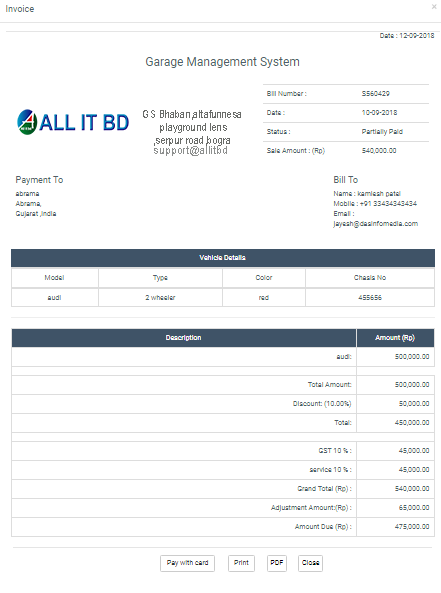
View Invoice: Admin can view a complete list of all Sales and view detail of particular Sales by clicking on view detail button. This will open up details.
Delete Sales: Admin can delete a complete list of all Sales and delete detail of particular Sales by clicking on delete detail button. This will delete details.
Facebook Comments