For Admit Card Setting please follow the next steps:
1. Login to System Admin Panel.
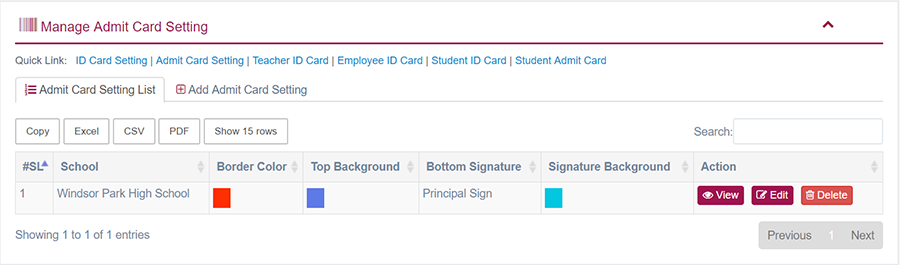
2. Select Admit Card Setting sub menu under Generate Card main menu from left side bar.
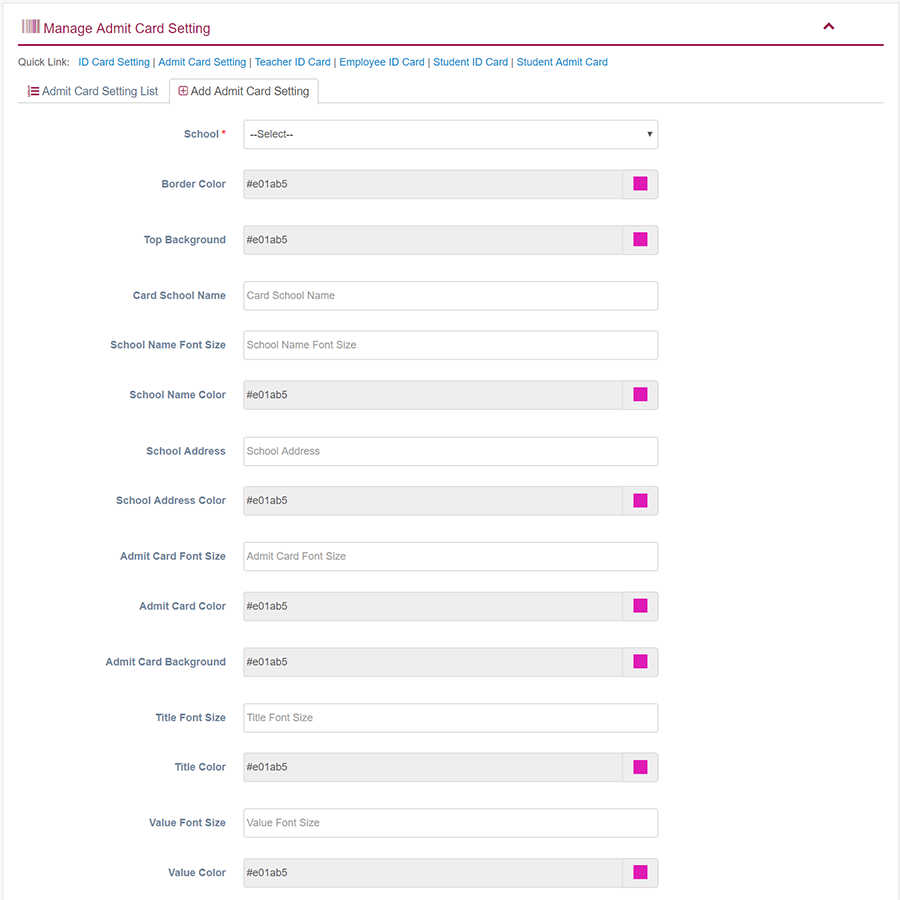
3. To Add/Create new Admit Card Setting click Add Admit Card Setting  tab.
4. To Edit Admit Card Setting Click Edit  button in the Admit Card Setting list.
5. To Delete Admit Card Setting Click Delete  button in the Admit Card Setting List.
6. You are done with Manage Admit Card Setting feature.
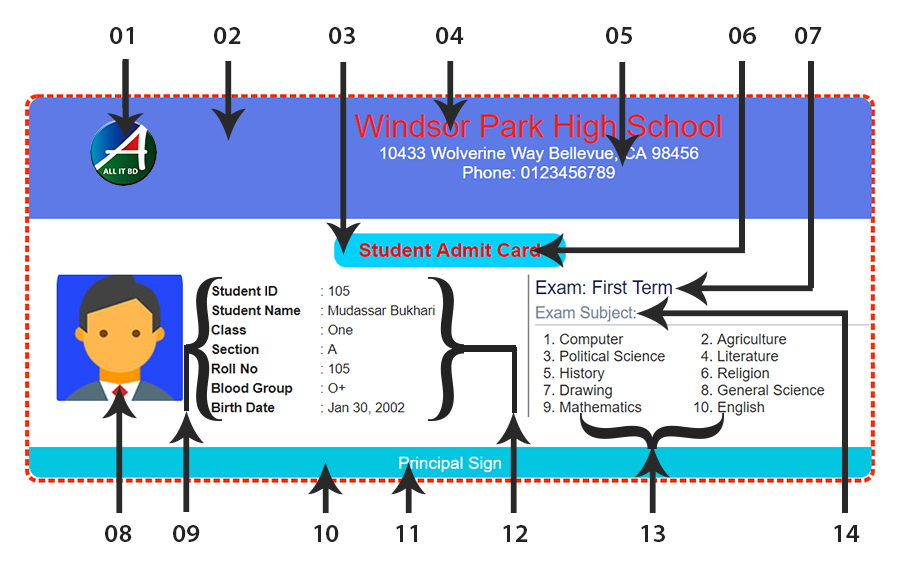
- Admit Card Logo
- Top Background
- Admit Card Background
- Card School Name/ School Name Font Size/ School Name Color
- School Address / School Address Color
- Admit Card Font Size/ Admit Card Color
- Exam Font Size/ Exam Color
- Student Profile Photo
- Title Font Size/ Title Color
- Signature Background
- Bottom Signature/ Signature Color/ Signature Align
- Value Font Size/ Value Color
- Subject Font Size/ Subject Color
- Subject Head
Facebook Comments